The client portal
Give a client their own login to see their results, reports and accounts.
Invite a client
- Open the client from Clients, then Accounts and access → Invite the client (or the client’s menu (⋮) → Invite the client on the list).
- Under Invite by email, enter the client’s address and send. Or copy the invitation link and send it yourself. It works for 14 days.
- The client opens one page in your agency’s name: they create their login, connect their accounts and, when their plan is paid by card, add their card. Then their portal opens. See what the client sees.
Who can sign in lists everyone with access; Remove access ends it. Client logins are free: they don’t count as team members on your plan.
What the client sees
- Overview: the headline numbers, and a note when an account needs reconnecting.
- Social, Website and Ads: each appears once that kind of account is connected.
- Calendar: the posts you’ve planned and published for them, by month or as a list. Posts you sent them for approval are marked, and they Approve them or Ask for changes right there — the same as the link in the approval email. Drafts, posts your team is still checking and posts that failed aren’t shown. Day notes you share with them (The team and the client) show on their days; your team’s own notes never do.
- Inbox: their comments, messages and reviews, when you share them (see below), and the replies you ask them to approve.
- Reports: every monthly report you’ve sent them.
- Account: their connected accounts — they can connect and reconnect them themselves — and, when they have more than one, their workspaces.
- Payments to you, when you bill them through the app.
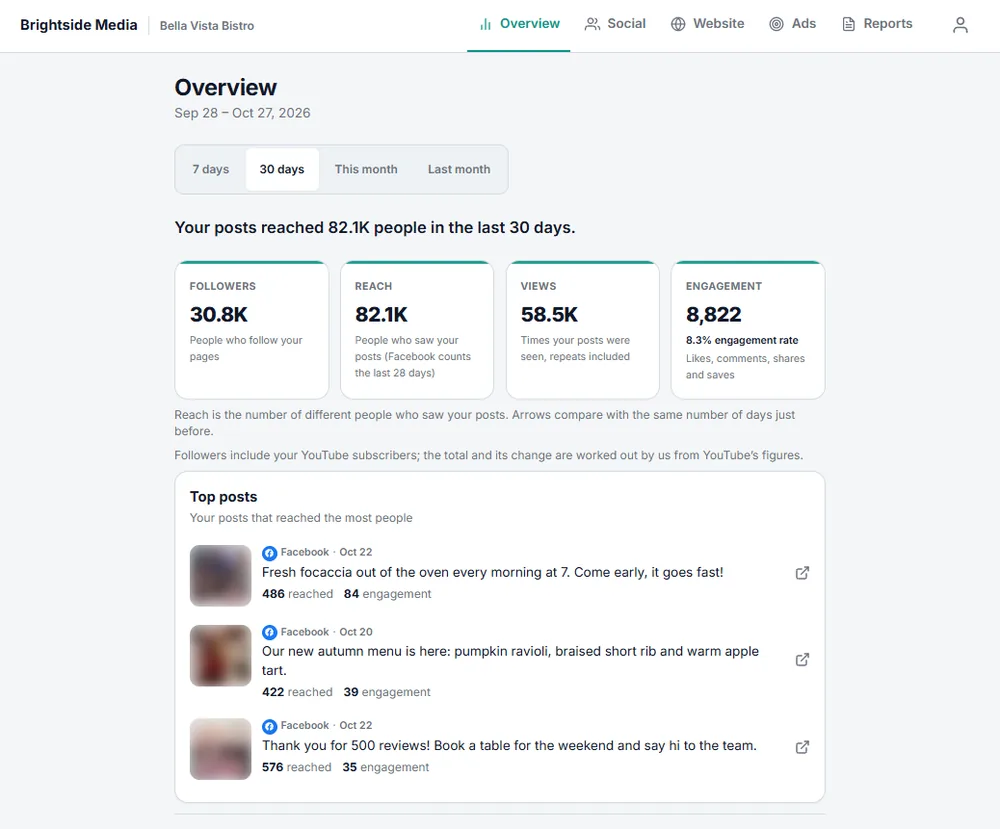
Clients only read, apart from answering the posts and replies you send them for approval, and replying in their Inbox when you allow it: they can’t post or change anything of yours. Accounts left out of reports don’t appear in their portal at all.
Their inbox
An Owner chooses, for each client, what their login can do with the client’s comments, messages and reviews: in the Inbox, pick the client, then the gear at the top → The client’s portal.
- Nothing (the start): no Inbox in their portal.
- Read only: they see the conversations and your answers.
- Reply, with your approval: they can write replies; each waits under Approvals in your Inbox until an Owner approves it (it goes at that click), changes it or rejects it.
- Reply: their replies go straight out.
They see only that client’s accounts, and never your private notes, tags, your team, or who has a conversation.
Switch on Ask the client to approve sensitive replies first and your replies to low reviews, complaints and urgent conversations wait for them too (after an Owner’s approval, when one is needed). They find them at the top of their Inbox: Approve and send sends the reply at that click; Ask for changes sends you their note instead, and the reply doesn’t go. They get an email when one is waiting. It applies only while the client has a portal login, and an Owner can approve a waiting reply on the client’s behalf.
Clients with more than one workspace
One login can be in more than one workspace: a client of two agencies, or a client who also has a workspace of their own. They switch with the business’s name at the top of the portal, or under Account → Your workspaces. Each workspace opens on its own home: another agency’s portal shows that agency’s name and look, and a workspace they work in opens where they manage it.