Connect Bluesky
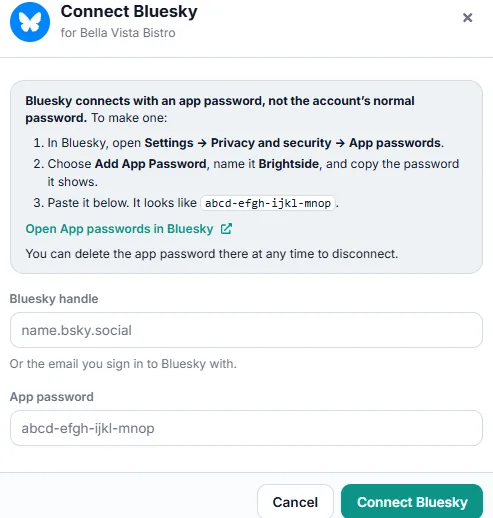
Bluesky connects with an app password you make in Bluesky — never your normal password.
Bluesky has no sign-in page for other apps. Instead you make an app password in Bluesky and paste it here with your handle. It only works for this connection, and you can delete it at any time.
Make an app password
- In Bluesky, open Settings → Privacy and security → App passwords (or go to bsky.app/settings/app-passwords).
- Add an app password and give it a name you’ll recognise, such as your agency’s name.
- Copy it. It looks like abcd-efgh-ijkl-mnop.
Connect
- Click Connect next to Bluesky.
- Enter your handle (like name.bsky.social) or the email you sign in to Bluesky with.
- Paste the app password and connect.
If something goes wrong
That isn’t a Bluesky app password.
You pasted your normal password. Make an app password as shown above and paste that instead.
Bluesky didn’t accept that handle and app password.
Check the handle, and copy the app password again — it’s easy to miss a character.
There’s no Bluesky account with that handle.
Check the spelling, for example name.bsky.social, or use your sign-in email instead.
Bluesky is limiting sign-ins for this account just now.
Wait a few minutes, then try again.
Removing access
Delete the app password in Bluesky under Settings → Privacy and security → App passwords.