Connect Mastodon
Tell us which server your account is on, then sign in there.
Find your server
Every Mastodon account lives on a server. It’s the part after the second @ in your handle: for @panevino@mastodon.social it’s mastodon.social. Joined in the Mastodon app without picking a server? Then it’s mastodon.social.
Steps
- Click Connect next to Mastodon.
- Enter your server’s address and continue.
- Your server’s own page opens. Sign in there and approve the connection. No password is shared.
- You come back to the page and the row turns green.
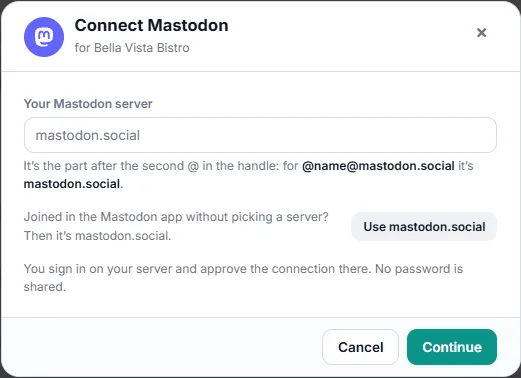
We can publish posts to your Mastodon account and read how they do. We can’t see your direct messages.
If something goes wrong
That address isn’t a Mastodon server.
Enter only the server, like mastodon.social — not your whole handle or a web address with a path.
That Mastodon server didn’t allow the connection.
Some servers block new apps. Try again later, or ask the server’s admin.
The Mastodon sign-in didn’t finish.
Start the connection again from the link.
Removing access
On your Mastodon server: Preferences → Account → Authorized apps, then revoke the app.