Connect a Facebook Page and Instagram
One Facebook sign-in connects your Page and the Instagram account linked to it.
Before you start
- You need full control of the Facebook Page (you are its admin), signed in with your own Facebook profile.
- Instagram must be a professional account (Business or Creator) and linked to the Page. Personal Instagram accounts can’t be connected — no app can post to them.
- Is the Page owned by a business portfolio in Meta Business Suite? Then your own Facebook profile needs full control of the Page there too.
Steps
- Click Connect next to Facebook Page & Instagram (or next to Facebook or Instagram).
- Facebook opens. Sign in if it asks, and check it shows your own name.
- If Facebook says you’ve connected before and offers to continue with your previous settings, choose Edit settings (or Edit access) instead. Otherwise you can’t pick the Page and Instagram account.
- Tick the Page, then the Instagram account, and allow everything Facebook lists. Leaving a permission out stops posting, insights, comments or messages from working.
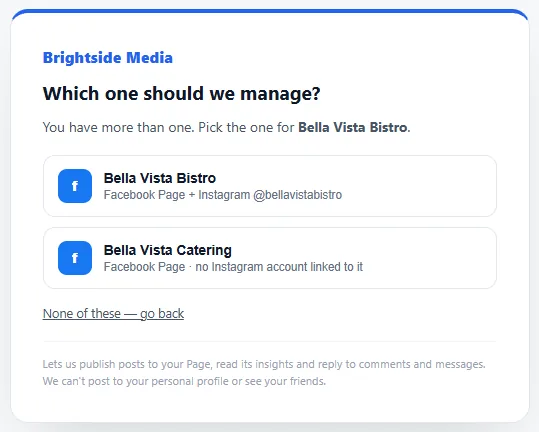
- Back on the page, pick your Page if you manage more than one. Done.
If something goes wrong
Sign in with the Facebook profile that manages the Page. On Facebook, open the Page and check under Settings → Page access that you have full control.
The Page was connected, but Instagram wasn’t. Link Instagram to the Page (open the Page on Facebook → Settings → Linked accounts → Instagram), then click Connect next to Instagram.
Switch Instagram to a professional account: in the Instagram app, open Settings → Account type and tools → Switch to professional account. Then link it to the Page and connect again.
Start again and choose Edit settings on the Facebook screen, then tick that Page. Facebook only shares the Pages you tick.
Posting works, but this connection doesn’t allow answering comments or reading messages yet (Pages and Instagram accounts connected before these were turned on, or with a permission left unticked). Click Reconnect next to the account (or send the reconnect link), choose Edit settings on the Facebook screen, tick the Page and its Instagram account and allow everything listed. Keep your other Pages ticked; unticking a Page stops posting to it. Comments and messages start coming into the Inbox within about 10 minutes, and the client’s other Facebook and Instagram accounts are checked again then too. Nothing else changes.
Everything works, but Facebook isn’t telling us about new comments and messages as they happen, so they are read every 10 minutes. Reconnecting once and allowing everything Facebook lists makes them arrive in real time. Keep your other Pages ticked; unticking a Page stops posting to it.
This can happen when the Facebook app opens during the sign-in. Open the link in your browser (Safari or Chrome), not inside the Facebook or Instagram app, log in at facebook.com in that browser first, then click Connect again.
Removing access
On Facebook: Settings & privacy → Settings → Business integrations, then remove the app.