Connect a YouTube channel
Sign in with Google and choose the channel to upload videos and Shorts to.
Steps
- Click Connect next to YouTube channel.
- Google opens. Choose the Google account the channel belongs to. If the channel is a brand account, Google asks you to pick it — pick the business’s channel, not your personal one.
- Allow the access Google lists.
- You come back to the page and the row turns green.
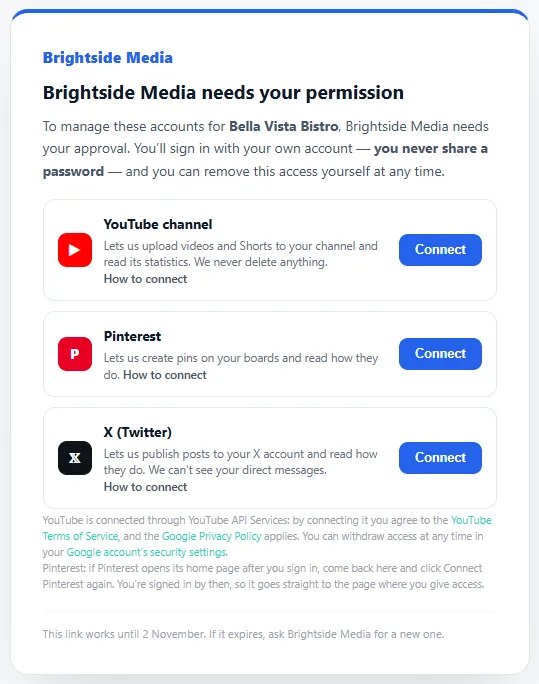
We can upload videos and Shorts to your channel and read its statistics. We never delete anything.
YouTube is connected through YouTube API Services: by connecting it you agree to the YouTube Terms of Service, and Google’s Privacy Policy applies.
If something goes wrong
The wrong channel was connected.
Ask your agency to disconnect it, then connect again and pick the brand account when Google asks.
Removing access
In your Google Account: Security → Your connections to third-party apps & services, then remove the app. You can also do it from Google’s security settings.